Overview
Strong password management practices are critical to keeping you, your work, and St. Mary's University secure. Most systems at St. Mary's (email, wireless, VPN, and many other applications) use your user login and password to authenticate. St Mary's will now provide more efficient tools to help you manage your password and Multi-Factor Authenticate to keep you safe and working.
Password Manager allows Students, Faculty and Staff at St. Mary's University to establish or update a secure Account Password. Campus networks and information systems require both a Username and the Account Password for authentication purposes.
All Faculty, Staff, and Students are required to change their account Password every 12 months (365 days).
Recommendations
- Be prepared to complete the process in one sitting without interruption.
- Have your mobile device ready in case you decide to set up phone recovery.
- Think about what you want your new password to be – a short sentence that's easy to remember but hard to guess and meets the new requirements:
- Must be at least 16 characters long.
- Must include at least 1 number.
- Must have at least 1 lowercase letter.
- Must have at least 1 uppercase letter.
- Must have at least 1 symbol (non-letter or number) of the following characters only: {}!%^-_.
- Must not repeat any character more than 3 times.
- Must not repeat any character sequentially more than 2 times.
- Must not include part of your name or username.
- Must not include a common word or commonly used sequence of characters.
- You cannot use your previous four passwords.
If you need help creating a strong password, click here to go to the Password Meter tool.
Step 1 - Setup
To start the process, click on the image on the left or on the link below:
https://password.quicklaunch.io/user?tenantDomain=stmarytxprod.edu
Setting up your account should be an easy-to-follow process. Should you have any questions or trouble setting up this feature, contact the Technical Support Center @ (210)431-4357 or stop by the TSC Help desk located inside the UC Commons area.
1.1 - Once you have access to the Password Manager setup page, you will be prompted to re-enter your credentials:
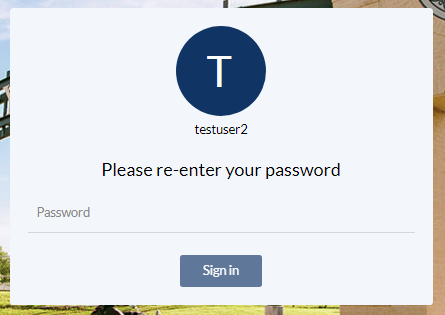
1.2 - Enter your credentials and click on Sign in
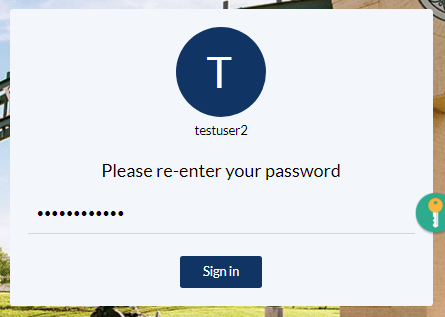
Continue to STEP 2
Step 2 - Security Questions
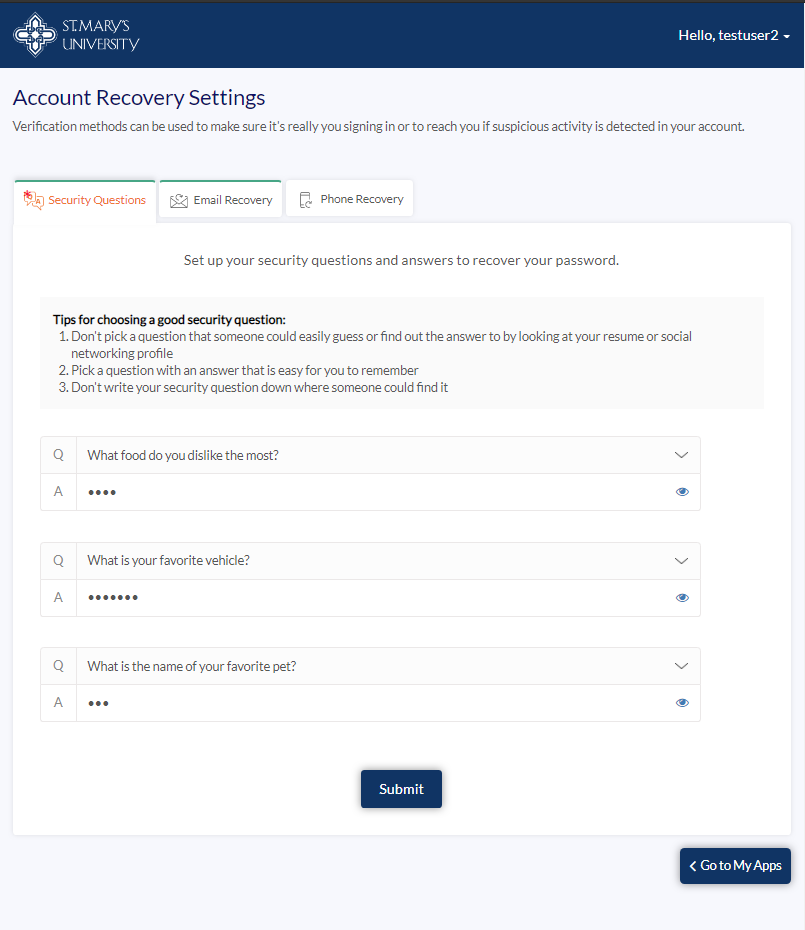
2.1 - The first knowledge factor you have to create is your Security Questions:
Security Questions allow you to provide personal answers that can be used to verify your identity in case you forget your password. The answers should be both easy to remember and difficult to guess.
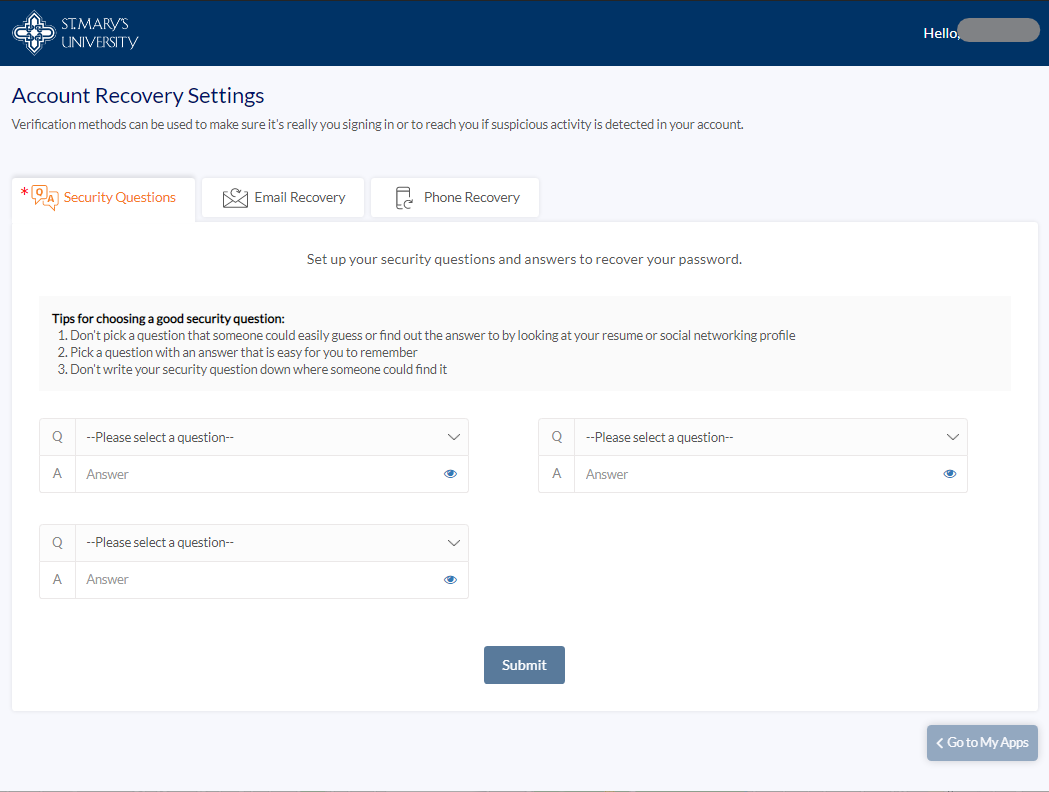
Once you are ready, click on Submit to continue with the next STEP
Step 3 - Email Recovery
3.1 - The second knowledge factor is your Email Recovery settings:
Email Recovery allows you to specify one email address where you may receive verification codes. You may enter your Personal Email address, and click Update to complete the email verification process. Do not use your University address (i.e. *@stmarytx.edu or *@mail.stmarytx.edu). You can set up two emails if you like, but only one is required.
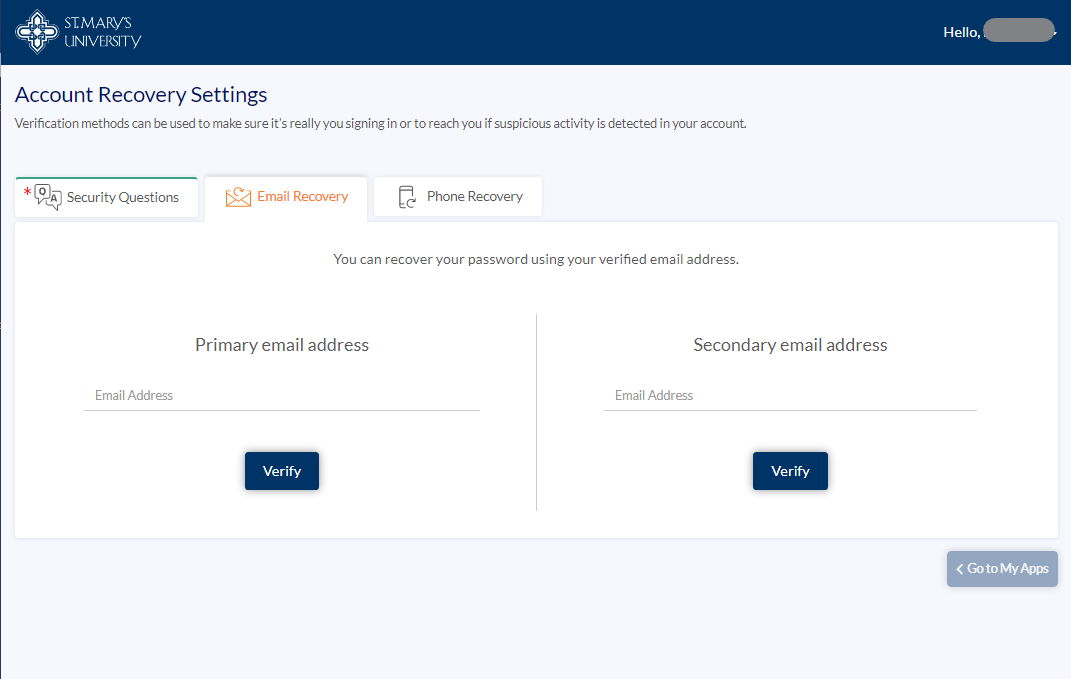
3.2 - You now have to confirm this email address is valid. Click on Verify and make sure you have access to that specific email box to continue with the process:
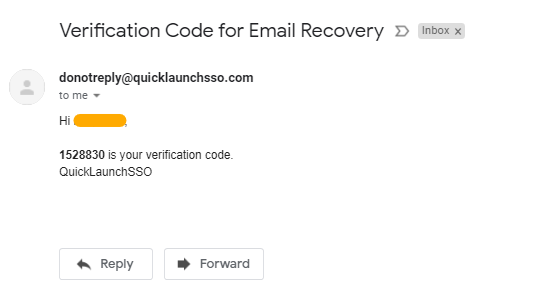
3.3 - After you have received your verification code by email, go back to your browser and enter the verification code in the space below your email on the Email Verification box and submit.
If you didn't receive a code, make sure you check your junk or clutter folders. If you didn't receive it, click on the resend option or close this box to go back and verify that the address is correct.
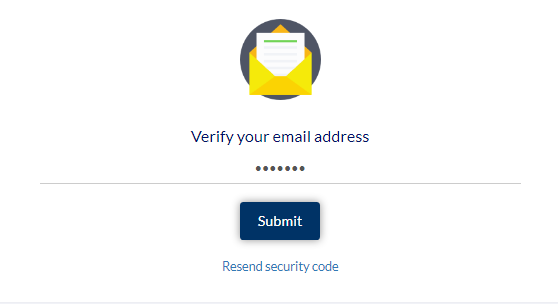
3.4 - Email verification has been successful:
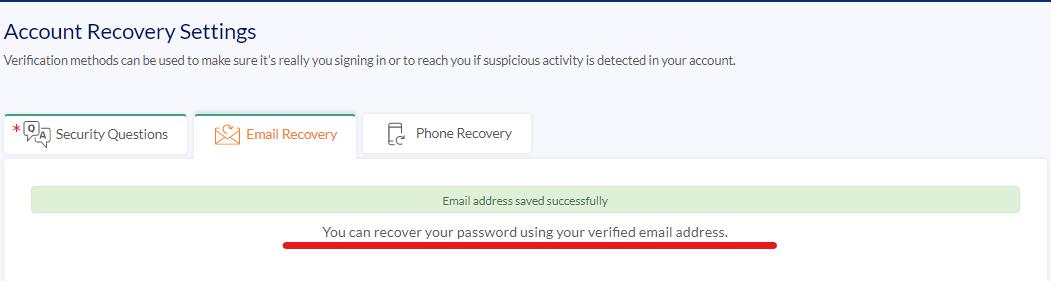
Step 4 - Phone Recovery
4.1 - The third knowledge factor is your Phone Recovery settings. This step is optional but recommended to add another layer of security to your account in the event you lose access to your email.
Phone Recovery allows you to specify one mobile phone number where you may receive verification codes via text. Enter your 10-digit phone number without formatting (i.e., numbers only) and click Verify to complete the phone verification process.
NOTE: You need to enter your number with country code, i.e "1" for the US.
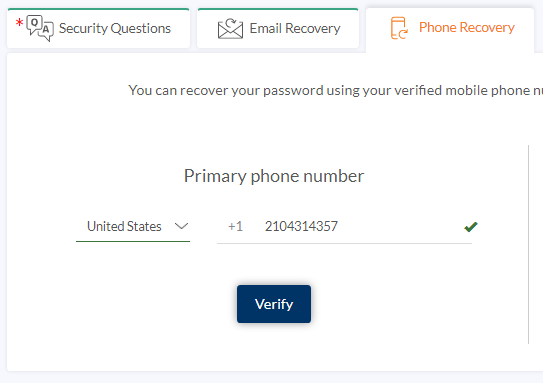
Make sure you have access to that number; a verification code will be sent via SMS to verify your phone settings.
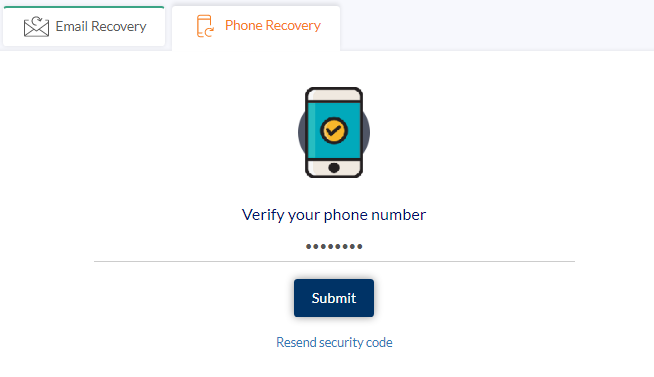
4.2 - Once you have received your verification code:
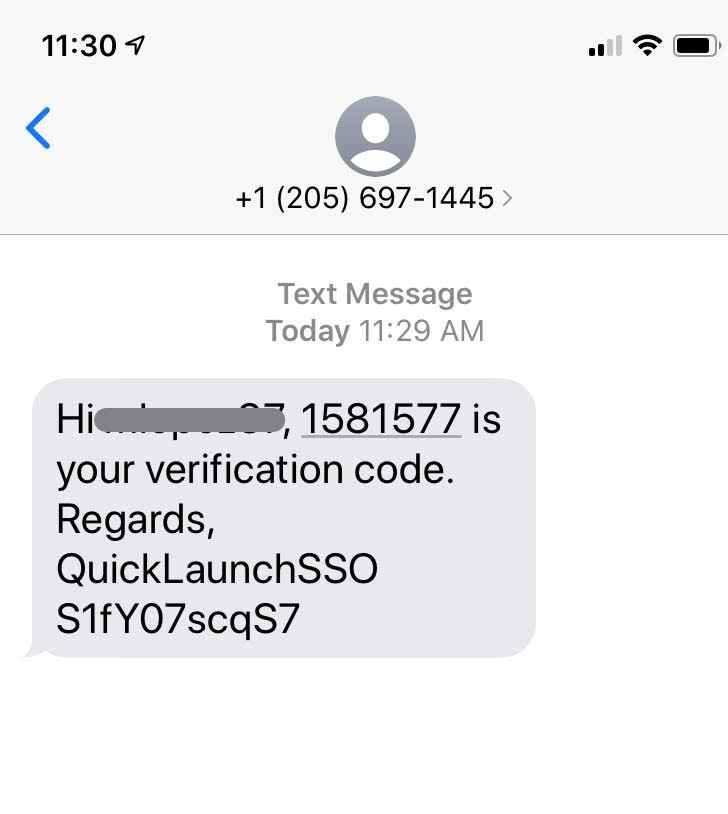
Enter the code in the Phone Verification box and click submit.
If you didn't receive a code, click on the Resend Security Code option below submit. If you still didn't receive a code, exit this box and verify the cell phone number has been correctly entered and your plan allows for SMS messages to be received.
4.3 - You have now verified your phone settings.

Step 5 - PWM Complete
You are now done!!
You have the option to "Go to My Apps"; it will prompt you to log in to apply your new security settings.
Or to go "Back to Account Security"
Login with MFA
After you complete setting up your account in Password Manager, Multi-Factor Authentication is now active, and it will prompt you to verify one of your security factors at login.
Let's review this process:
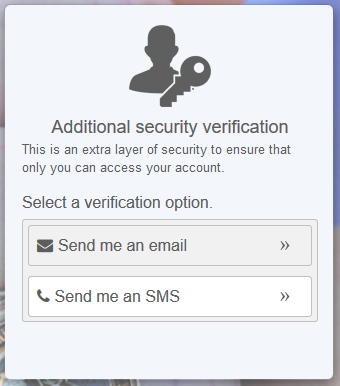
1. Once you log in, you will be redirected to verify is indeed you who is logging in. You will be prompted with a window to select your desired verification option.
2. If you set up multiple security factors (email and phone), you can choose which one is convenient at that moment in time. If you only set one, either phone or email, you will be prompted with that specific verification option:
Email Verification
If you selected Email as a verification factor, make sure you have access to that email to continue with this process.
1. On the email verification window, you will be prompted to select the email of your choice. Password Manager allows you to have a secondary email verification option. If this is the case, you will have the opportunity to select the email of your choice in this window.
Note: Only one primary email is required.
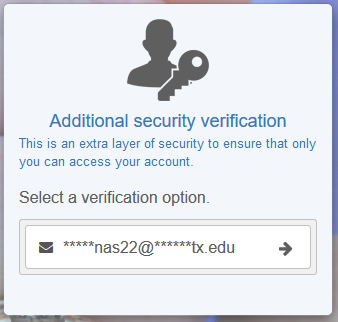
2. A verification code will be sent to the email you selected. Please make sure to check your junk or clutter folders if you have not received a verification code.
Note: This process is immediate and should not take longer than a minute or two to get the verification code. If you still have not received your code, click on the Resend security code option to get a new code.
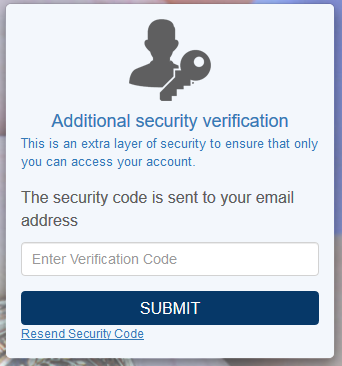
3. Once you receive your verification code, please input the code and click Submit to finish the verification process and continue to Gateway.
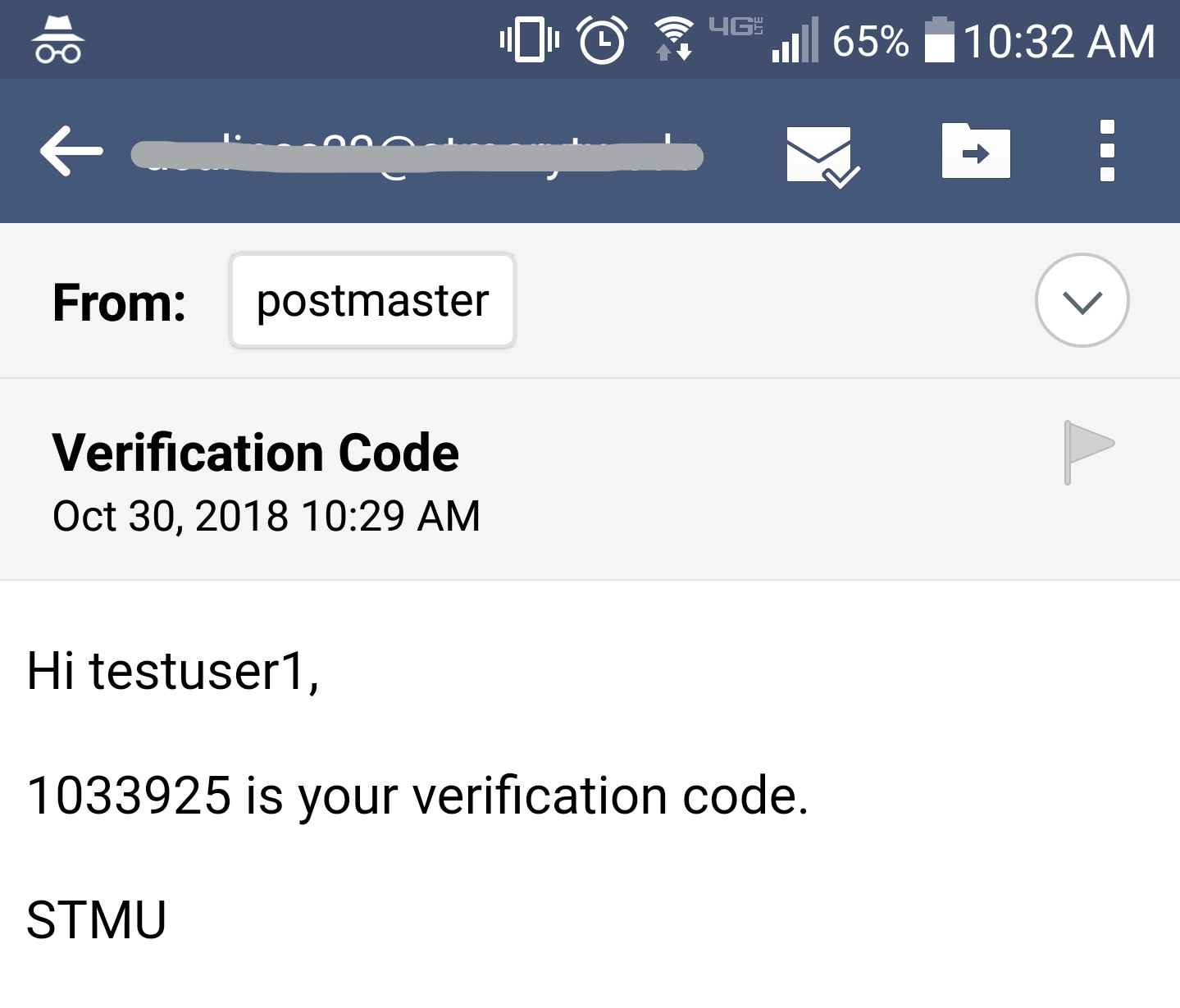
SMS Verification
If you selected SMS as a verification factor, make sure you have access to your cell phone to continue with this process.
1. On the SMS verification window, you will be prompted to select the phone number of your choice. Password Manager allows you to have a secondary phone verification option. If this is the case, you will have the opportunity to select the phone number of your choice in this window.
Note: Only one primary phone is necessary to enable this verification factor.
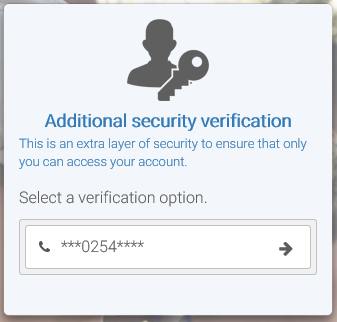
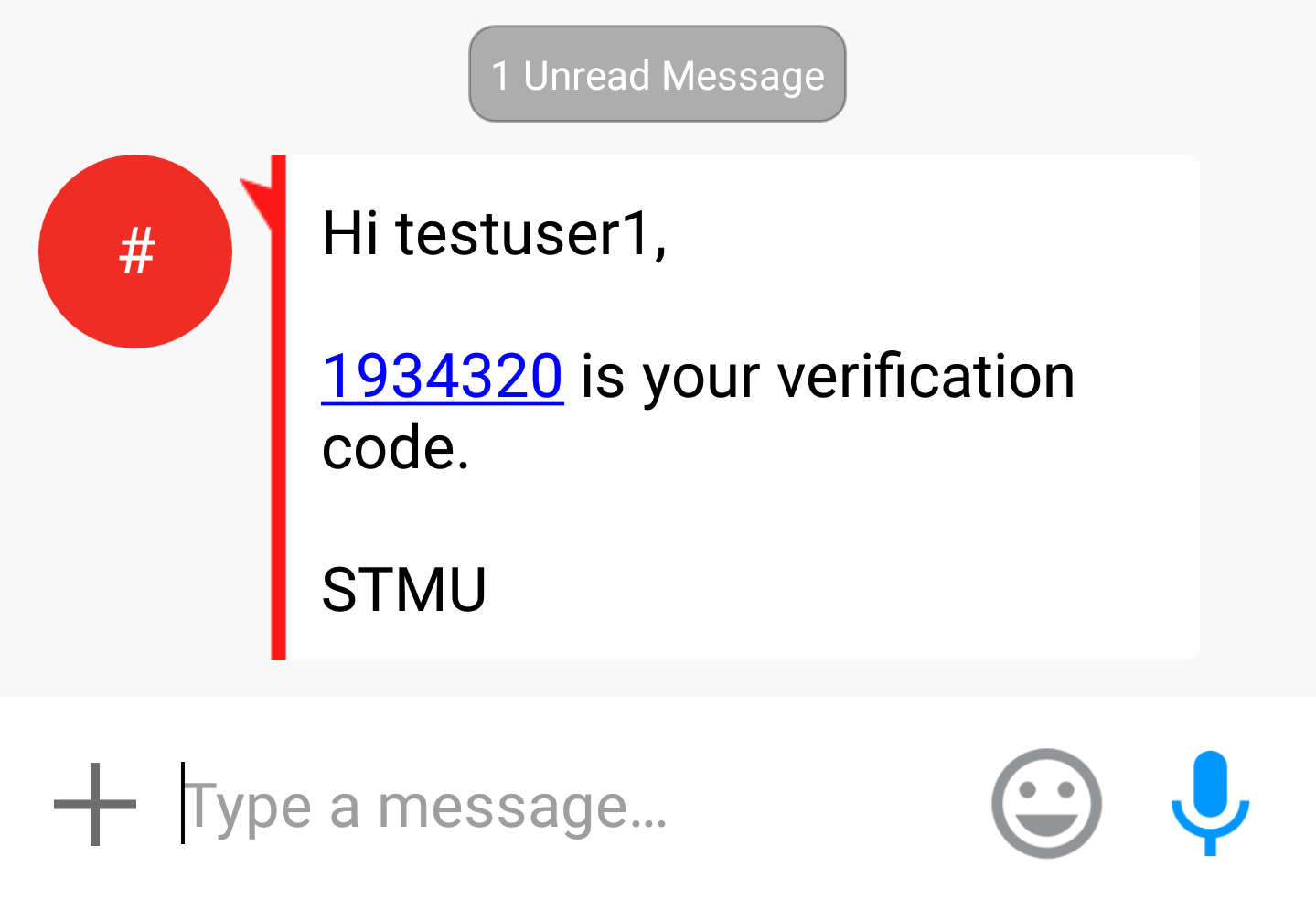
2. A verification code will be sent via SMS to the phone number you selected.
Note: This process is immediate and should not take longer than a minute or two to get the verification code. If you still have not received your code, click on the Resend security code option to get a new code.
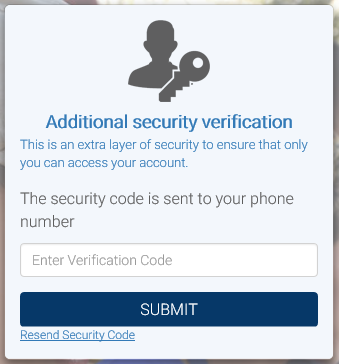
3. Once you receive your verification code, please input the code and click Submit to finish the verification process and continue to Gateway.
Password Manager allows Students, faculty, and Staff at St. Mary's University to establish or update their account password and security settings. Campus networks and information systems require both a Username and the account password for authentication purposes.
If you require to make changes to your account, such as update your recovery email, change your phone number, or update your security questions, you can click on the link below to manage your security profile:
Password Manager