How to Copy
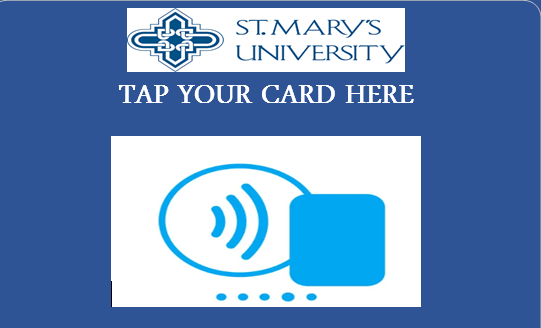
Step 1: Tap your card on the St. Mary's University label or log in using the keyboard.
Step 2: Select Access Device.

Step 3: Select Easy Copy.

Step 4: Input the number of copies. Other options include:
Paper Select
Lets you choose which paper tray/size to print from. Tapping this lets you pick a different tray if you need a different paper size (like legal size) or a different tray with colored paper.
2-Sided Copy
Controls whether your copies are single-sided or double-sided, and also what the original document looks like. Other common options usually include:
- 1 → 2 (single-sided original, double-sided copy)
- 2 → 1 (double-sided original, single-sided copy)
- 2 → 2 (double-sided original, double-sided copy)
Copy Ratio
Controls the scaling/zoom of the copy. This could be adjusted to shrink or enlarge the copy — for example, reducing a legal-size page to fit on letter-size paper, or enlarging a small document.
Staple
Controls whether the printer automatically staples multi-page copies together.

Step 5: Select whether you would like a B/W or Color copy.