Downloading And Authentication
Step 1: Authenticate your St. Mary's Zoom account

Step 2: Gateway will authenticate your account.
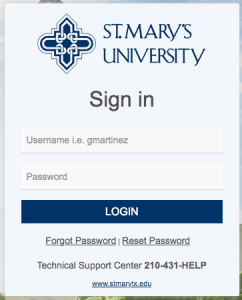
- Sign in with your St. Mary's username & password.
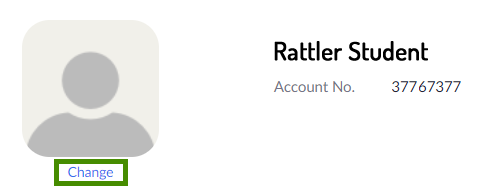
Step 3: You will be redirected to your profile screen, where you can update your picture.
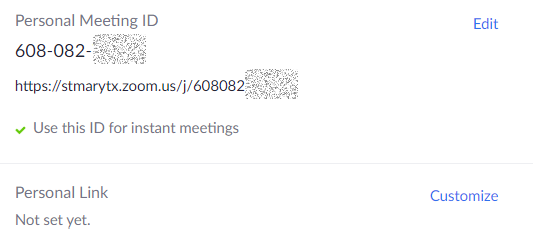
Step 4: It will be important that you keep this information handy, as this is how you can set up personal meetings to meet with your peers or provide tutoring.
- You can also set up your personal link by selecting Customize.
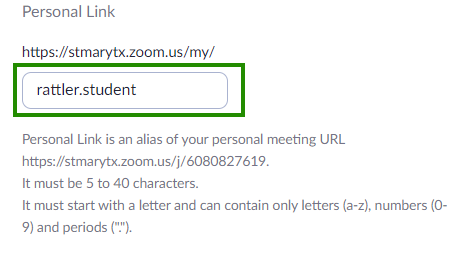
Step 5: This option will give you the opportunity to set up a personalized link that will be easier to remember instead of just numbers.
- Make sure you pay attention to the guidelines for creating your personal link; they are described underneath the input box.
Step 6: Don't forget to save your changes.
